
On this page
Snipe-IT works well as long as someone maintains it. At some point time runs out, the server wants updates, and the list no longer matches what's in the cupboard. If that's where you are, this guide walks you through switching from Snipe-IT to Sovaro. Connect your directory, roll out the agent, add the rest.
A quick note so you know who's writing. We're Sovaro, a Snipe-IT alternative for cloud-first teams with around 30 to 150 employees, with or without an IT admin. Snipe-IT is a good tool, and for some teams it stays the right choice. Which ones, you'll find further down. For everyone else, let's get started.
Key points
- Instead of transferring the old list, you rebuild your inventory in Sovaro, and most of it happens automatically. Once the Sovaro agent is installed, laptops and desktops report in on their own with model, serial number, operating system and security status.
- Sovaro knows your employees from Google Workspace or Microsoft Entra. Devices from Microsoft Intune are taken over automatically.
- You use the Snipe-IT export as a checklist and an archive. Whatever the agent doesn't find, such as accessories or devices in storage, you add via invoice, a photo of the serial number or by hand.
- Consumables, components and the checkout history stay in Snipe-IT or in the export.
No time for the move? We'll go through the switch with you, from setup to the first check against your export. Pick a time
What changes after the switch
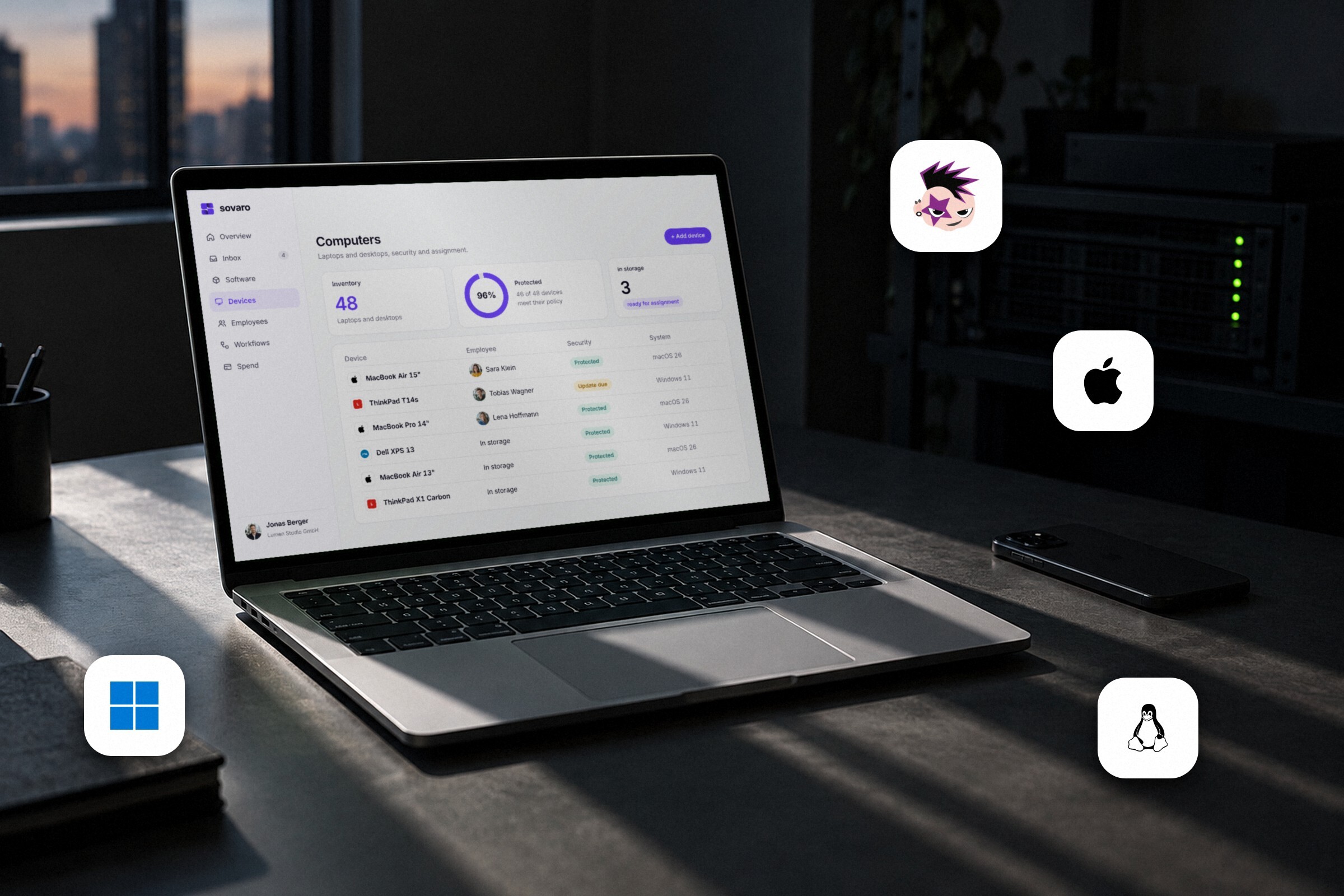
The difference isn't the list, it's who keeps it. Without an MDM connection, someone in Snipe-IT enters the devices and keeps them up to date. In Sovaro, devices report in on their own with model, serial number, encryption, installed software and apps in use. On top of that, you get a few things Snipe-IT isn't built for.
- No more server. Sovaro runs as a cloud service in EU data centers. No updates, backups or maintenance on your side.
- Software and costs next to your devices. Which tools each person uses, what they cost and which licenses nobody has opened in weeks.
- Joiners and leavers as a workflow. New employee in Personio, Google Workspace or Microsoft Entra? With the HR add-on, Sovaro creates the laptop order, access and return checklist as tasks.
You'll find the detailed feature comparison in Sovaro vs. Snipe-IT, and an overview of other tools in our IT asset management software comparison. This guide is about how to get to Sovaro.
What Sovaro picks up on its own and what you add
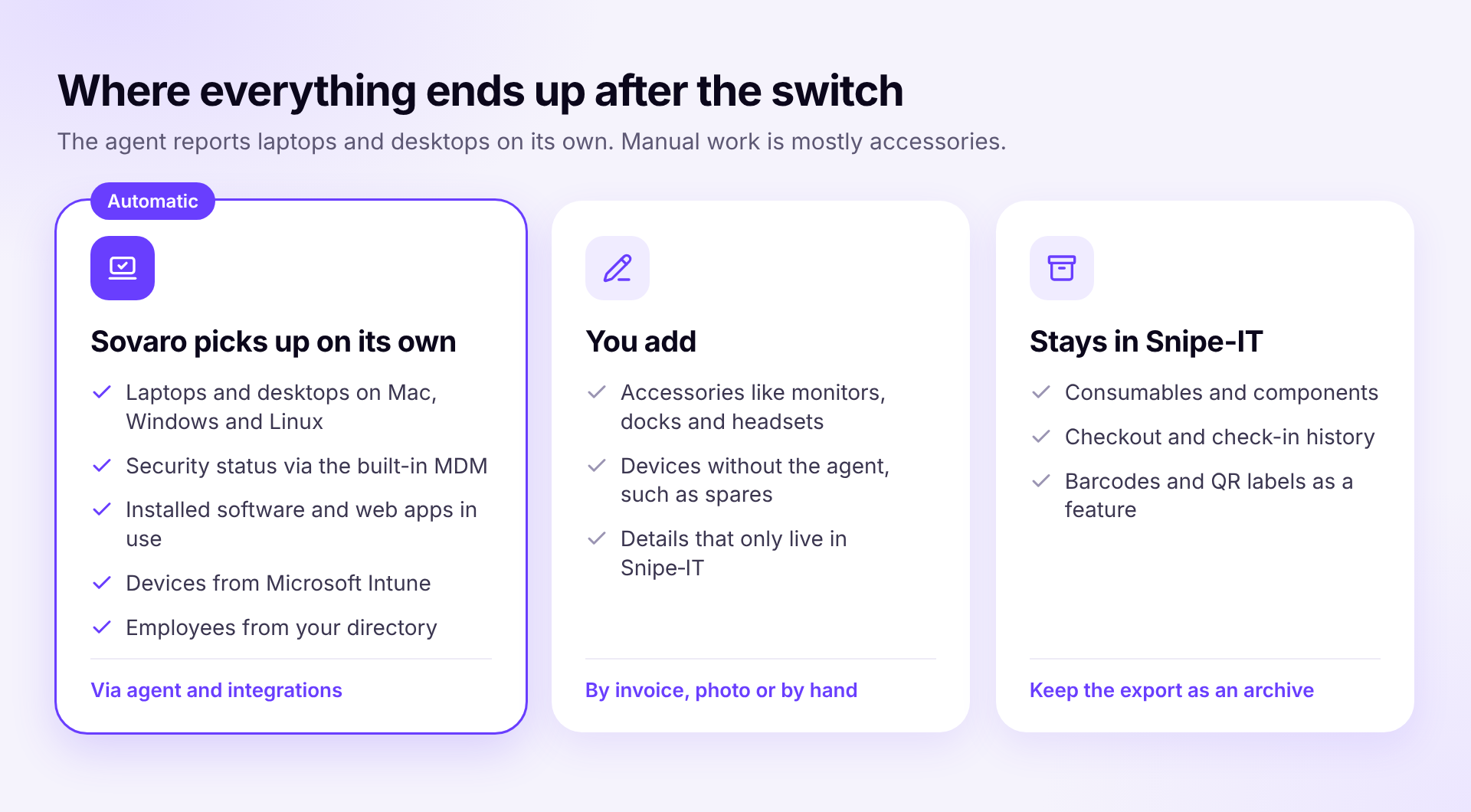
The honest list first. For laptops and desktops, the agent does almost everything. The manual work is in accessories and in anything you only kept in Snipe-IT.
What Sovaro picks up on its own
- Laptops and desktops with model, serial number, operating system and storage, as soon as the agent is installed. Mac, Windows and Linux.
- Security status through the built-in MDM, meaning whether the disk is encrypted, the firewall is on and the operating system is up to date.
- Software, meaning installed programs and web apps in use, through the agent and the browser extension.
- Devices from Microsoft Intune, if you already use it.
- Employees with team and location from Google Workspace, Microsoft Entra or Personio.
What you add
- Accessories like monitors, docks and headsets, via invoice, a photo of the serial number or by hand.
- Devices without the agent, such as spare laptops in storage, smartphones or tablets.
- Details that only live in Snipe-IT, which you copy onto the device by hand where you need them.
What stays in Snipe-IT
- Consumables and components. Sovaro doesn't have a module for those.
- Checkout and check-in history. Keep the export as an archive.
- Barcodes and QR labels as a feature. The labels can stay on the devices.
Step 1: Export your inventory from Snipe-IT (5 minutes)
The export is your checklist for step 4 and your archive for everything that stays in Snipe-IT. The Custom Asset Report is the most complete, because you choose the columns yourself.
- In Snipe-IT, go to Reports, then Custom Asset Report.
- Tick these fields: Asset Tag, Asset Name, Serial, Model, Manufacturer, Category, Status, Purchase Date, Purchase Cost, Supplier, Location, Checked Out To, Username and Email.
- Don't set any filters. The report includes archived devices automatically.
- Click Generate and save the file.
Snipe-IT exports accessories separately from devices. Grab that list too, you'll need it when adding the rest.
Step 2: Connect Google Workspace or Microsoft Entra
During setup you connect your directory. That brings all your employees into Sovaro, and new accounts appear automatically. If you use Personio, you can connect it as well.
If you already manage Windows laptops with Intune, connect it at this point too. Sovaro takes over the devices from there and matches them by serial number, so nothing shows up twice.
Step 3: Roll out the agent
Send your team the setup link. The Sovaro agent installs on Mac, Windows or Linux, and devices appear right away with model, serial number, operating system and security status. Installed software and apps in use follow over the next few days.
From here, the inventory keeps itself up to date for these devices. Nobody has to update an entry when a laptop gets an update or new software is installed.
Step 4: Check against the export and add the rest
Put the Snipe-IT export next to the device list in Sovaro. The serial number is the key. Anything on both lists is done. Anything only on the export is usually a device in storage, an accessory or a laptop that doesn't have the agent yet.
- Laptop without the agent. Send the person the setup link again.
- Device in storage. Add it in Sovaro by hand and mark it as in stock.
- Accessory. Add it via invoice, a photo of the serial number or by hand and assign it to the person.
Often a few entries are left over that no longer belong to anyone. Most of the time, these are laptops of former employees that never came back. It's the actual state your old list never showed, and often the first moment the switch pays off. For how to handle laptops day to day after that, see our guide to managing company laptops.
More about devices in SovaroReplace Snipe-IT or keep running both?
Two weeks in parallel are enough to see whether everything is in place. After that, you have two options.
- Replace. Store the last full export as an archive and shut down the server. Self-hosted, there's nothing to cancel. If you use Snipe-IT's hosted version or a support plan, check the contract term.
- Keep running. If consumables, components or labels should stay in Snipe-IT, it remains the list for those. Sovaro takes over laptops, accessories, software, costs and workflows. There's no sync between the two.
When you should stay with Snipe-IT
We'd rather say this here than in a call after the switch.
- You need barcodes, QR labels, components or consumables.
- You want to run and customize the source code yourself.
- Someone maintains Snipe-IT and the list is accurate. Then stick with it.
Frequently asked questions
Ready to switch?
Start your free trial and roll out the agent, or plan the switch with us. 14-day free trial without payment details, cancel monthly.
See Sovaro with your own data.
Connect Google Workspace or Microsoft Entra and see your devices, apps, and licenses in minutes.
14-day free trial, no payment details required. Cancel monthly.